How to Sign a PDF Without Printing It
By Bishal Neupane · · 3 min read
Printing a document just to sign it, then scanning it back in, is slow and produces a blurry copy. You can sign a PDF directly in your browser in under a minute — here's how, and what to know about whether it counts.
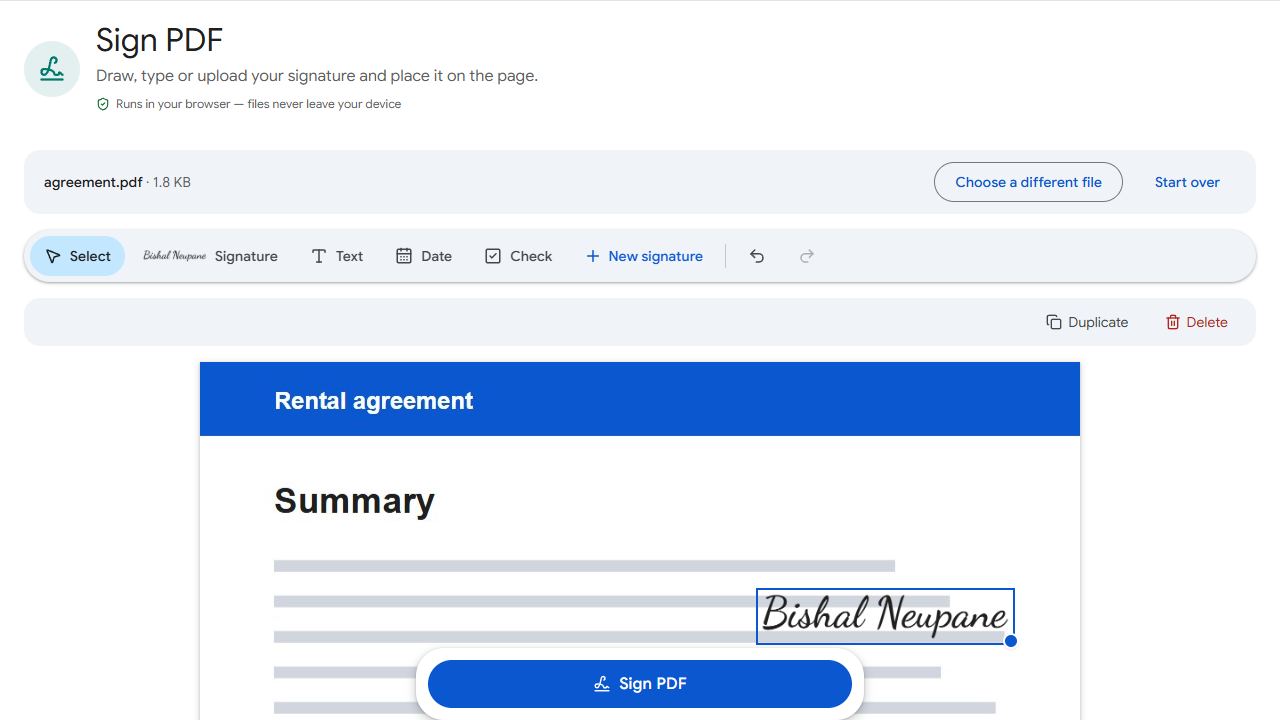
Step by step
- Open Sign PDF and add your document.
- Click Create signature. Draw it with your mouse, finger or stylus; type your name and pick one of three handwriting styles; or upload a photo of your signature.
- Place the signature on the page, drag it into position and use the corner handle to resize it.
- Click Sign PDF and download the signed copy.
Your signature is created in your browser and isn't stored anywhere once you close the page.
Getting a signature that looks right
- Drawing on a phone usually looks more natural than with a mouse — try signing with your finger.
- Uploading gives the most authentic result: sign on white paper with a dark pen, photograph it in good light, and crop it tightly.
- Keep the signature roughly the size of the signature line; oversized signatures look odd when printed.
Filling in the rest of the form
If the document has fillable fields (name, date, checkboxes), complete them first with Fill PDF Forms, then sign the saved file. If it isn't fillable, use Edit PDF to type the date or your name anywhere on the page.
Is an electronic signature legally valid?
In many countries — including under the US ESIGN Act and the EU's eIDAS regulation — a simple electronic signature like this is legally recognised for most everyday agreements: rental forms, permission slips, invoices, many business contracts.
Some documents require more: certain property transfers, wills, notarised documents or official filings may need a wet-ink signature or a certified ("qualified") digital signature. If you're unsure, check with the person or organisation asking for the signature.
This guide is general information, not legal advice.
Common problems and fixes
- My drawn signature looks shaky.
- Mice are hard to sign with. Try a phone or tablet and your finger, sign a little larger than normal, or switch to a typed signature or an uploaded photo of your real one.
- The uploaded signature has a grey or coloured background.
- Photograph the signature on plain white paper in bright, even light, and crop tightly around it. A dark pen on white paper gives the cleanest result.
- The signature ends up in the wrong place.
- Before downloading, select the signature and drag it into position; use the corner handle to resize it. You can delete it and place it again as many times as you like.
- The other person needs to sign too.
- Sign your copy, download it and send it to them. They can open the signed PDF in Sign PDF and add their own signature.
Frequently asked questions
In many places a typed name can count as an electronic signature if it shows your intent to sign, but rules vary by country and document type. For important agreements, check what the other party accepts.
Yes. Sign PDF has a Date tool that places today's date on the page, and a Text tool for anything else, such as your printed name.
No. The signature is added on top of the page; the original content stays exactly as it was.
An electronic signature is any mark that shows you agreed — a drawn, typed or pasted signature. A digital signature is a cryptographic certificate that proves who signed and that the file hasn't changed since. PDFCraftly adds electronic signatures.