How to Sign a PDF on iPhone (Draw, Type or Upload)
By Bishal Neupane · · 2 min read
Someone emails you a form to sign and there's no printer nearby. Your iPhone is all you need, and signing with a finger usually looks more natural than signing with a mouse.
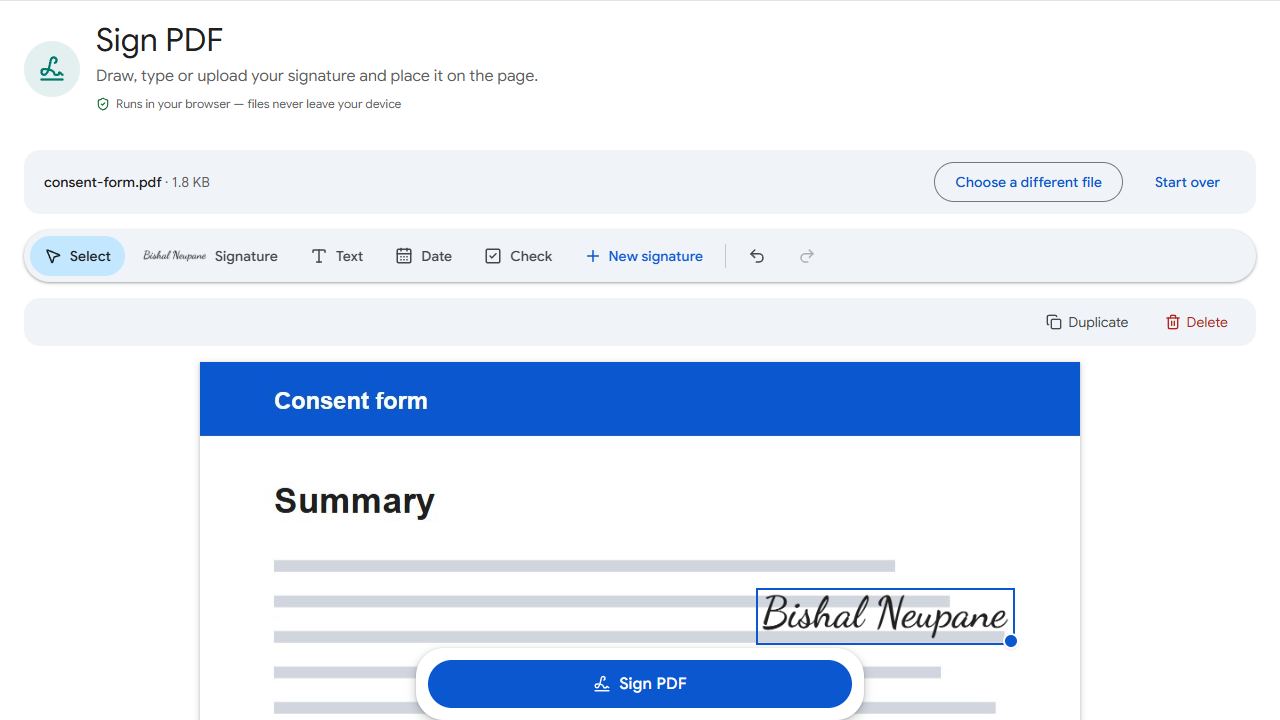
Sign in Safari
- Save the PDF to the Files app first: open the attachment, tap Share and choose Save to Files.
- Open Sign PDF in Safari and add the PDF.
- Tap Create signature. Draw it with your finger, type your name and pick a handwriting style, or upload a photo of your real signature.
- Tap the page where the signature goes, then drag it into place and use the corner handle to resize it.
- Tap Sign PDF and download. The signed copy goes to Downloads in the Files app.
iPhone's Markup vs. Sign PDF
iOS has a built-in signature tool too: open the PDF in Files or Mail, tap the Markup (pen) button, then + → Add Signature. It's fine for a quick signature.
Sign PDF adds typed signature styles, a Date tool and text boxes for your printed name, and works the same way on any phone or computer, which helps when you sign on different devices.
Getting a good finger signature
- Sign slowly and a little larger than on paper. It's scaled down when you place it.
- If your drawn signature looks shaky, sign on white paper with a dark pen, take a photo and upload it instead.
- Keep the signature about the size of the signature line so it looks natural when printed.
Fill in the rest of the form
If the document has fillable fields, complete them first with Fill PDF Forms, then sign the saved file. If it doesn't, type your name or the date anywhere with Edit PDF. For whether an electronic signature counts, see how to sign a PDF without printing.
Common problems and fixes
- My signature looks shaky.
- Sign more slowly and a little larger. If it still looks off, sign on white paper, take a photo and upload it, or use a typed signature.
- I can't find the signed PDF.
- Open the Files app, tap Browse, then Downloads.
- The PDF attachment won't open in the picker.
- Save it first: open the attachment, tap Share and choose Save to Files, then pick it from there.
- The form fields won't take my typing.
- Fill them in first with Fill PDF Forms, download, then sign that saved copy.
Frequently asked questions
In many countries a simple electronic signature is accepted for everyday documents, but rules vary by country and document type. Check with whoever asked for the signature.
Yes. Apple Pencil works on the signature pad just like a finger.
No. It's created in your browser and discarded when you close the page.
Yes. Send them the signed file; they can open it in Sign PDF and add their own signature.