How to Prepare Academic Documents as PDFs for Studying Abroad
By Bishal Neupane · · 2 min read
University portals in Australia, the UK, the US, Canada, Japan and Europe ask Nepali applicants for a familiar stack: SEE and +2 marksheets and certificates, bachelor's transcripts, character certificates, passport, bank balance certificate and test scores. Clean, clearly named PDFs save you from rejected uploads and follow-up emails.
Scan each document properly
- Scan in colour at 200–300 DPI so seals, stamps and signatures are readable.
- Include the back of any document that has something on it, such as a grading scale on a transcript.
- Capture the whole page, edges included. Cropped seals or signatures raise questions.
- No scanner? Scan to PDF on your phone works well in daylight.
One PDF per upload slot
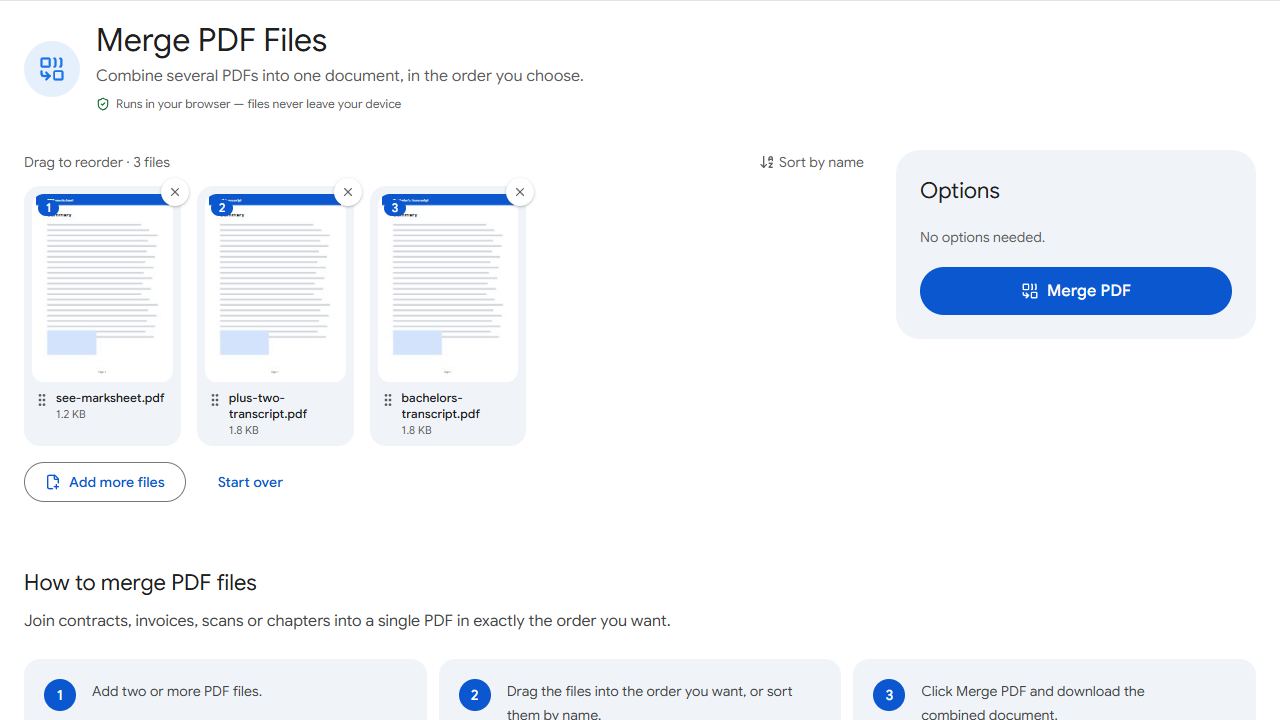
Most portals have separate upload slots such as "Academic transcripts", "Financial documents" and "Passport". Combine everything for one slot into a single PDF with Merge PDF, in a logical order: SEE, then +2, then bachelor's, each with its certificate and marksheet together.
If everything must go in one file
- Merge all documents in the order the university's checklist lists them.
- Add page numbers with Page Numbers so an officer can refer to "page 7".
- Add bookmarks for each section (Passport, Transcripts, Financial …) so they can jump straight to it.
Names, sizes and translations
- Name files like
Lastname_Firstname_Transcripts.pdf, using English letters only. - Check each slot's size limit. If a file is too big, compress it to the exact limit with Compress PDF (choose Target file size), remove pages that weren't asked for, or rescan at 200 DPI rather than 600.
- Documents in Nepali, such as a birth or relationship certificate, usually need a certified English translation. Merge each translation directly after its original.
Common problems and fixes
- The portal rejects my file.
- Check the accepted type (usually PDF), the size limit and the file name. Use English letters, numbers, hyphens and underscores only.
- Seals and stamps aren't readable.
- Rescan in colour at 300 DPI with even light. Seals are often faint, and black-and-white scans lose them.
- Pages are in the wrong order.
- Rearrange them in Organize PDF by dragging the thumbnails.
- The file is over the size limit.
- Shrink it with Compress PDF, and remove pages that weren't requested with Remove Pages. If the slot accepts several files, split with Split by Size.
Frequently asked questions
Colour. Seals, stamps and signatures are easier to verify in colour.
Most portals want clear scans of the originals. Some universities ask for notarised or attested copies later, so follow each one's instructions.
Yes. Scanning, merging and numbering all work in a phone browser, though a computer is easier for long files.
Yes. Files are processed on your device and never uploaded.