How to Merge PDF Files (and Get the Pages in the Right Order)
By Bishal Neupane · · 3 min read
Merging PDFs sounds simple until the pages come out in the wrong order, a scan is sideways, or you only needed three pages from one of the files. Here's how to get a clean combined document on the first try.
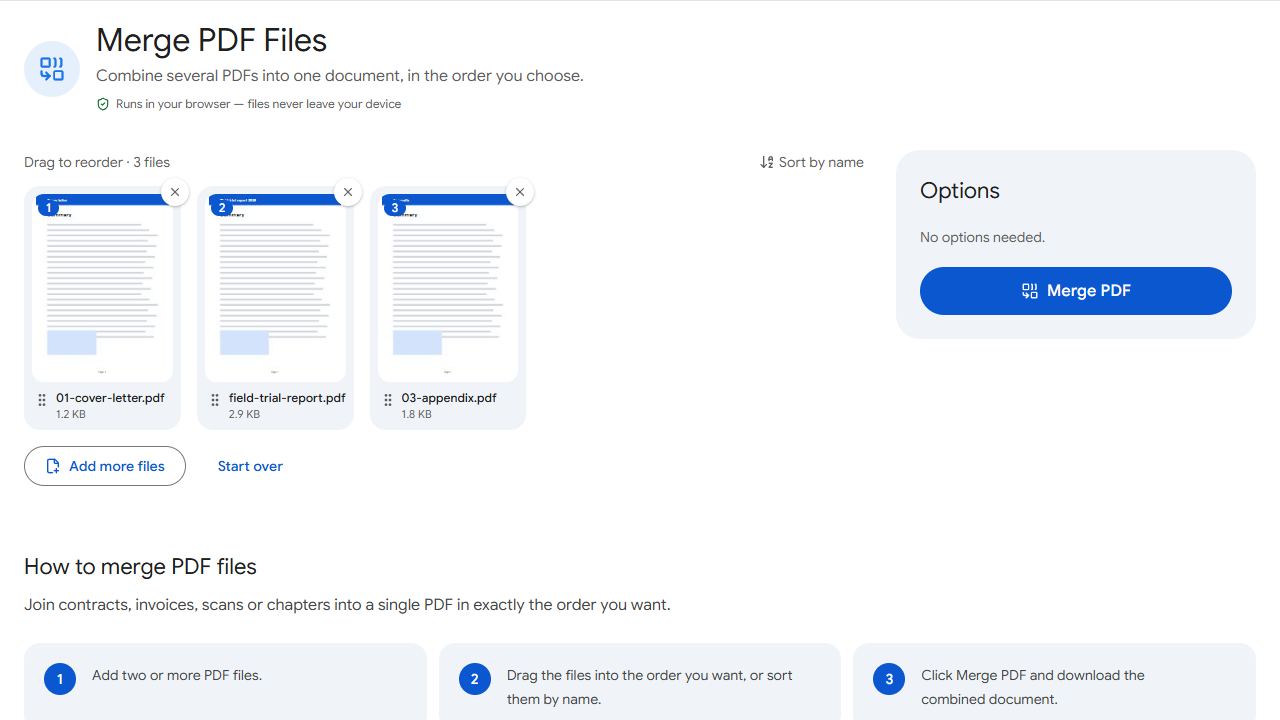
The basic merge
- Open Merge PDF and add all the files.
- Drag the file cards into the order you want. If your files are numbered (01-intro.pdf, 02-terms.pdf …), click Sort by name.
- Click Merge PDF and download the result.
Pages are copied exactly as they are, so text stays selectable, links keep working and images keep their quality.
Only need some pages from a file?
Merge adds every page of every file. If you only need part of a document, run it through Extract Pages first to save just the pages you want, then merge the extracted file with the others.
Fix the order after merging
If something still ends up in the wrong place, open the merged file in Organize PDF. You'll see every page as a thumbnail and can drag pages around, rotate sideways scans, delete duplicates or insert a blank page — handy before a document that will be printed double-sided.
On a phone, press and hold a page thumbnail until it lifts, then drag it.
Merging double-sided scans
A common problem: your scanner's feeder only scans one side, so you scan all the fronts, flip the stack and scan all the backs. Now you have two files — pages 1, 3, 5 … and pages 2, 4, 6 … (often in reverse order).
A normal merge would put all the fronts first. Instead, use Alternate & Mix, which takes one page from each file in turn. If the backs were scanned last-to-first, tick the reverse option for that file and the pages come out in reading order.
Tips for a professional result
- Name the final file clearly before you send it — for example
2026-lease-signed.pdf, notmerged (3).pdf. - Add page numbers after merging so the combined document is easy to reference.
- For long documents, add bookmarks so readers can jump between sections.
Common problems and fixes
- The merged file is huge.
- Merging never shrinks files — the result is roughly the sum of the inputs. Large sizes almost always come from scanned pages. Remove pages you don't need with Remove Pages, or split the result for email with Split by Size.
- One file won't add or causes an error.
- The PDF may be damaged or password-protected. If it asks for a password, remove it with Unlock PDF first (you'll need to know it), then try again.
- Pages from one file appear sideways.
- Some scanners save pages rotated. Fix them after merging in Organize PDF or Rotate PDF — the rotation is saved permanently.
- Bookmarks from the original files are missing.
- A merged document gets a fresh outline. Add chapter bookmarks back with Bookmarks, pointing each one at the first page of the original file.
Frequently asked questions
There's no fixed limit. Each file can be up to 200 MB, and the practical limit is your device's memory — dozens of normal documents are fine on any modern computer or phone.
Yes. Open Merge PDF in your phone's browser, add files from your storage or cloud apps, drag them into order and download the result.
Links inside pages are copied with the pages. Form fields usually carry over too, but fields with identical names in different files can conflict, so check a merged form before sending it.
Convert the images to a PDF first with JPG to PDF, then merge that PDF with your other documents.