How to Merge Odd and Even Scanned Pages into One PDF
By Bishal Neupane · · 2 min read
Many home and office scanners have a document feeder that only scans one side. You can still scan double-sided documents: scan the fronts, flip the stack, scan the backs — and then interleave the two files.
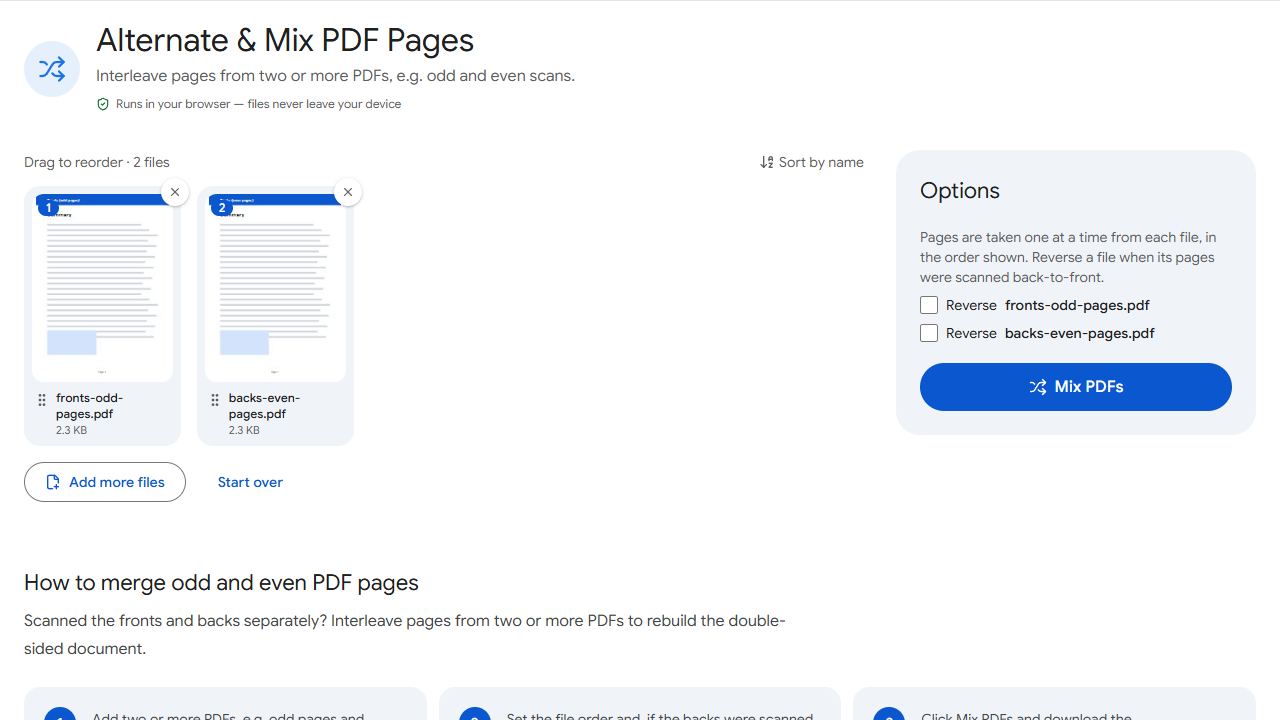
Scanning double-sided pages with a single-sided scanner
- Put the stack in the feeder and scan it. This file has pages 1, 3, 5 …
- Flip the whole stack over and scan again. This file has pages 2, 4, 6 … — usually in reverse order (…6, 4, 2), because the last page is now on top.
- Don't reorder anything by hand; the next step does it.
Interleave the two files
- Open Alternate & Mix and add both files, fronts first.
- If the backs were scanned last-to-first, turn on reverse for the backs file.
- Click Mix PDFs. The result takes page 1 from the fronts, page 1 from the backs, page 2 from the fronts, and so on.
Check pages 1–4 of the result. If page 2 is actually the last page's back, you forgot to reverse the backs file.
Why not just merge?
Merge PDF puts one file after the other — all fronts, then all backs. Alternate & Mix takes one page from each file in turn, which is what double-sided documents need. If a few pages still end up wrong (for example, a blank back you skipped), fix them in Organize PDF.
Common problems and fixes
- The result goes 1, 10, 2, 9 …
- The backs file is in reverse order. Turn on reverse for that file and mix again.
- The files have different page counts.
- A blank back was skipped, or a page double-fed. Pages alternate while both files have pages; fix leftovers in Organize PDF.
- Some backs are upside down.
- Flip direction varies by scanner. Rotate those pages afterwards with Rotate PDF.
Frequently asked questions
Yes. Pages are taken from each file in turn, in the order the files are listed.
No. Scanning each side separately and interleaving gives the same result.
No. Mixing happens in your browser.