How to Merge PDF Files on Windows 10 and 11 for Free
By Bishal Neupane · · 2 min read
Windows opens PDFs in Edge, but it can't join them, and Microsoft Print to PDF only handles one document at a time. A browser tool fills the gap without installing anything.
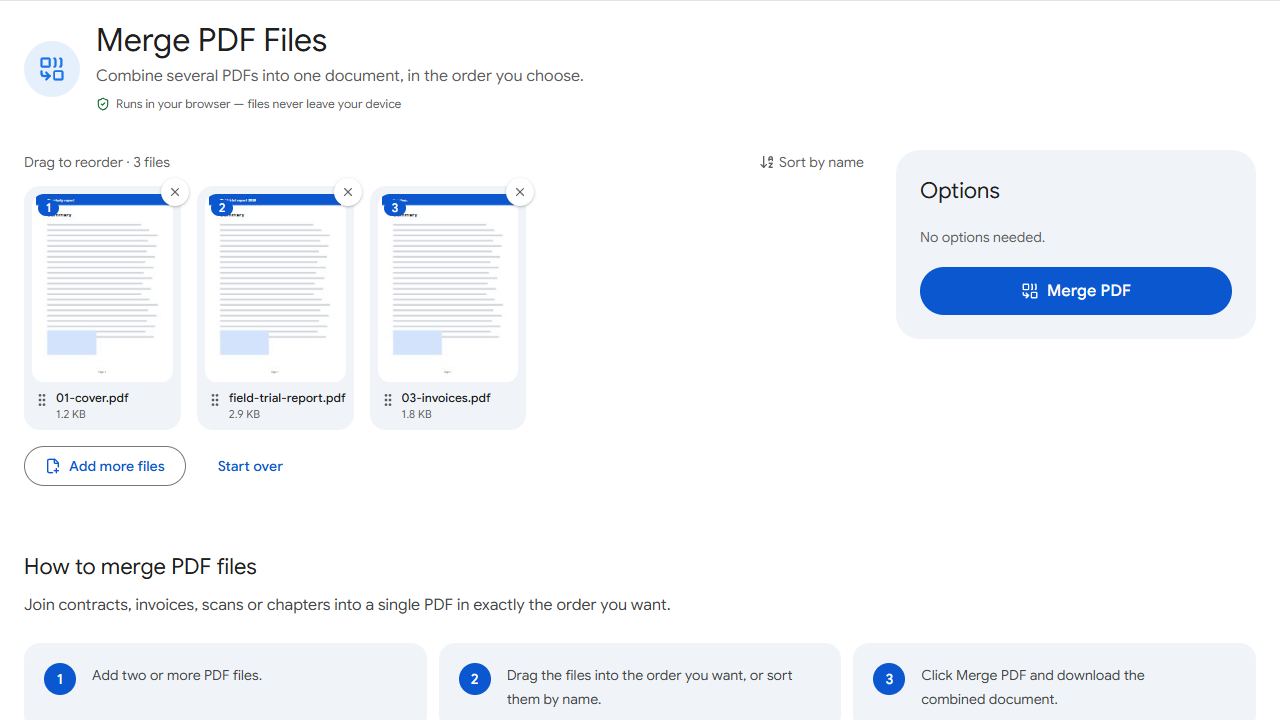
Merge PDFs in Edge or Chrome
- Open Merge PDF.
- Drag your PDFs from File Explorer onto the page, or click to choose them. Hold Ctrl to select several files in the dialog.
- Put them in order: drag the cards, or click Sort by name if the file names are numbered.
- Click Merge PDF. The file is saved to your Downloads folder (press Ctrl+J to see the download list).
Why not Microsoft Print to PDF?
Print to PDF creates a new PDF from whatever you print, one document at a time. It can't combine several files into one, and printing a PDF again drops its links and bookmarks. A real merge copies the pages exactly as they are.
Only need part of a file?
Merge adds every page of every file. To include just a few pages from a long document, save them first with Extract Pages, then merge the extracted file. To move single pages after merging, use Organize PDF.
Tips for Windows users
- Start file names with numbers (
01-cover.pdf,02-report.pdf) so Sort by name gets the order right in one click. - Your original files are never changed; the merge creates a new file.
- Rename the result before you send it —
2026-invoices.pdfbeatsmerged.pdf.
Common problems and fixes
- Dragging files onto the page does nothing.
- Make sure you're dragging PDF files, not a folder or a shortcut. Or click the upload area and choose the files in the dialog instead.
- I can't find the merged file.
- Press Ctrl+J to open the browser's download list and click Show in folder.
- Sort by name gives a strange order.
- Names are sorted as text, so
10-file.pdfcan come before2-file.pdf. Use two-digit numbers (02,10) or drag the cards into order. - One file won't add.
- It may be password-protected or damaged. If it asks for a password, remove it with Unlock PDF first.
Frequently asked questions
Not with built-in tools. A browser tool like Merge PDF does it without installing anything.
Current versions of Chrome and Edge no longer support Windows 7, so use Windows 10 or 11 with an up-to-date browser.
Yes. There's no sign-up, no watermark and no limit on how often you merge.
No. The files are processed on your PC by the page itself.