How to Make a PDF Fillable: Add Text Fields, Checkboxes and Dropdowns
By Bishal Neupane · · 2 min read
If you send the same form over and over — registration sheets, order forms, applications — making it fillable saves everyone time. People type their answers on screen instead of printing, writing and scanning.
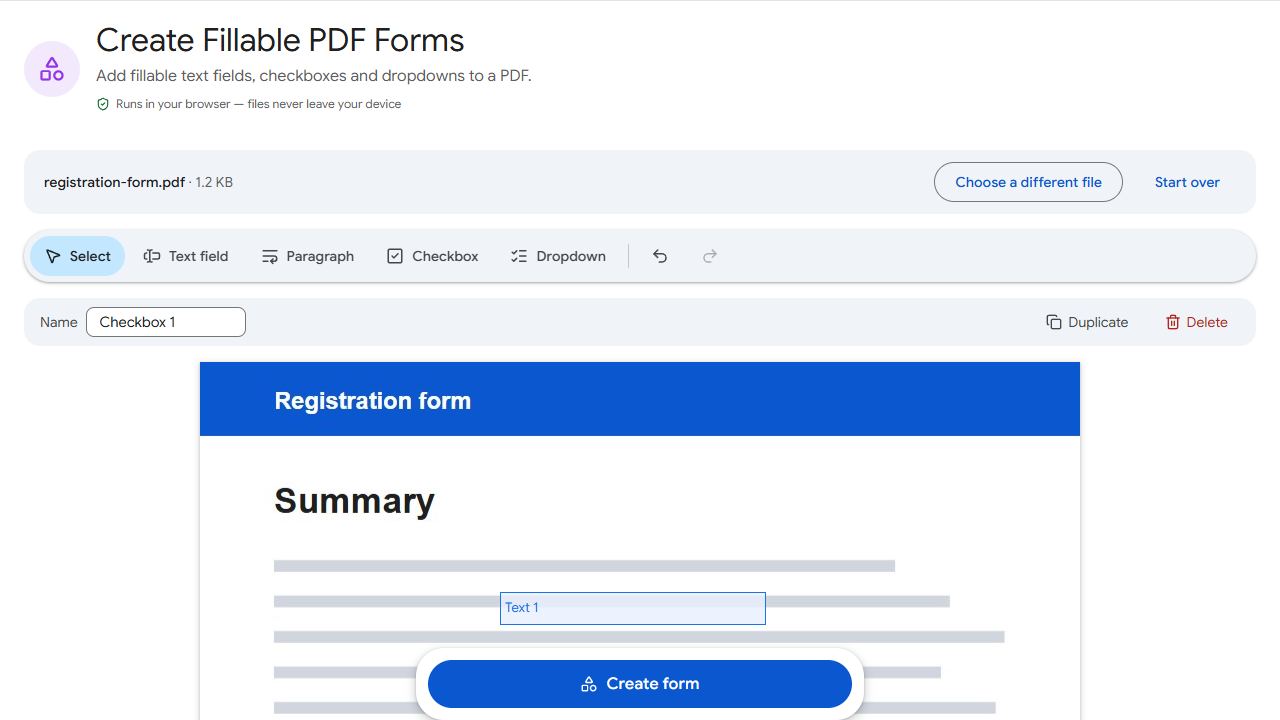
The field types
- Text field — a single line: name, date, phone number.
- Paragraph — a larger box for longer answers and comments.
- Checkbox — yes/no choices and lists to tick.
- Dropdown — pick one option from a list you define.
Step by step
- Open Create Forms and add your PDF — often a form you designed in Word and exported.
- Choose a field type, then click or drag on the page to place it over the blank line or box.
- For dropdowns, enter the options people can choose from.
- Click Create form and download the fillable PDF.
The fields are standard PDF form fields, so the form works in Adobe Acrobat Reader, web browsers and most PDF apps.
Designing a form people finish
- Size fields for the answer — a postcode box doesn't need to be as wide as an address.
- Use checkboxes and dropdowns where answers are predictable; they're faster to fill and easier to process.
- Test it yourself in Fill PDF Forms before sending it out. To type onto parts of a page that have no fields, use Edit PDF.
Common problems and fixes
- A dropdown shows no options.
- Enter at least one option for every dropdown before creating the form.
- Fields don't line up with the printed boxes.
- Select a field and drag it into place; use the corner handle to resize it.
- Fields have generic names like Text_1.
- Field names are generated automatically. They matter mostly if you collect form data with other software.
- The form looks cluttered with fields.
- Only add fields where people actually need to write. Headings, instructions and printed labels don't need fields.
Frequently asked questions
Yes. The fields are standard PDF form fields.
They can fill it, then add a signature with Sign PDF.
A text field holds one line, like a name. A paragraph field is taller and wraps text, for comments or longer answers.
Yes. Fields are placed on top of the page image, so it works for scans too. For best results, straighten and crop the scan first.