How to Edit a PDF for Free: Add Text, Images and Shapes
By Bishal Neupane · · 2 min read
Most PDF edits are small: a missing date, a corrected phone number, a logo, a highlight for a colleague. You don't need expensive software for that — a browser-based editor handles it in a minute.
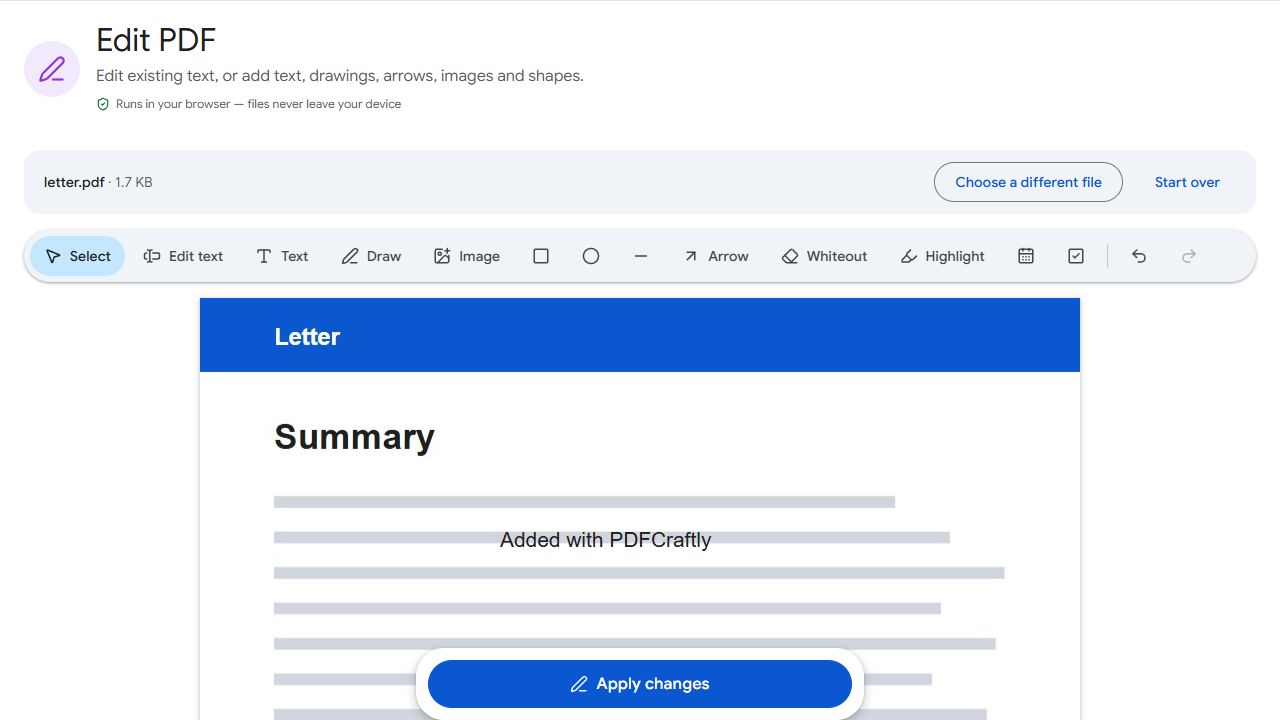
The editing tools
- Edit text — click a line of existing text to change it. It opens with the same size, font style and colour.
- Text — click anywhere and type. Change the font size, colour and weight in the properties bar.
- Draw — freehand pen for handwriting, circling and underlining.
- Arrow — point at exactly what matters; drag in the direction the arrow should point.
- Image — add a logo, photo or stamp from your device.
- Rectangle, Ellipse and Line — draw boxes, circles and straight lines.
- Highlight — mark important passages in yellow.
- Whiteout — cover existing content with a white box.
- Date and Check — drop today's date or an X into a box with one click.
Step by step
- Open Edit PDF and add the PDF.
- Choose a tool from the toolbar, then click on the page — or drag to draw the size you want.
- Select anything you've added to move it, resize it with the corner handle, or change its properties. Undo and Redo are always available, Ctrl+D duplicates the selected item and the arrow keys nudge it.
- Click Apply changes and download.
"Editing" existing text
Choose Edit text and every line of existing text gets a faint outline. Click one and it becomes editable, matching the original size, font style (sans, serif or mono, bold or regular) and colour. Behind it, the original words are covered with a patch in the page's background colour — even on coloured headers — so the result looks like a real edit. Click another line to keep going.
Edit text covers the original words rather than deleting them from the file. Don't use it to hide confidential information — remove those pages instead.
Better tools for some jobs
For forms with fields, Fill PDF Forms is quicker. For signatures, Sign PDF lets you draw, type or upload one.
Common problems and fixes
- Some text has no outline in Edit text mode.
- Scanned pages contain pictures of text, not real text — run OCR PDF first. Rotated or vertical text can't be edited this way; cover it with Whiteout and add new Text instead.
- My added text looks different from the document.
- Adjust the font, size and colour in the properties bar to get close. Exact matching of an unusual font isn't always possible.
- I made a mistake.
- Use Undo (or Ctrl+Z), or select the item and delete it.
Frequently asked questions
No. PDFCraftly never adds watermarks.
Yes. Scroll with your finger; choose a tool to place items on the page.
No. Editing happens in your browser; the file stays on your device.