How to Scan Documents to PDF with Your Phone
By Bishal Neupane · · 2 min read
Your phone camera is a perfectly good document scanner — if you know a few tricks. Here's how to turn paper into a clean PDF without installing an app.
Scan straight into a PDF
- Open Scan to PDF on your phone and allow camera access.
- Hold the phone directly above the page and capture it. Repeat for each page.
- Turn on scan mode for text documents: it boosts contrast so pages look like a real scan rather than a photo.
- Tap Create PDF and download.
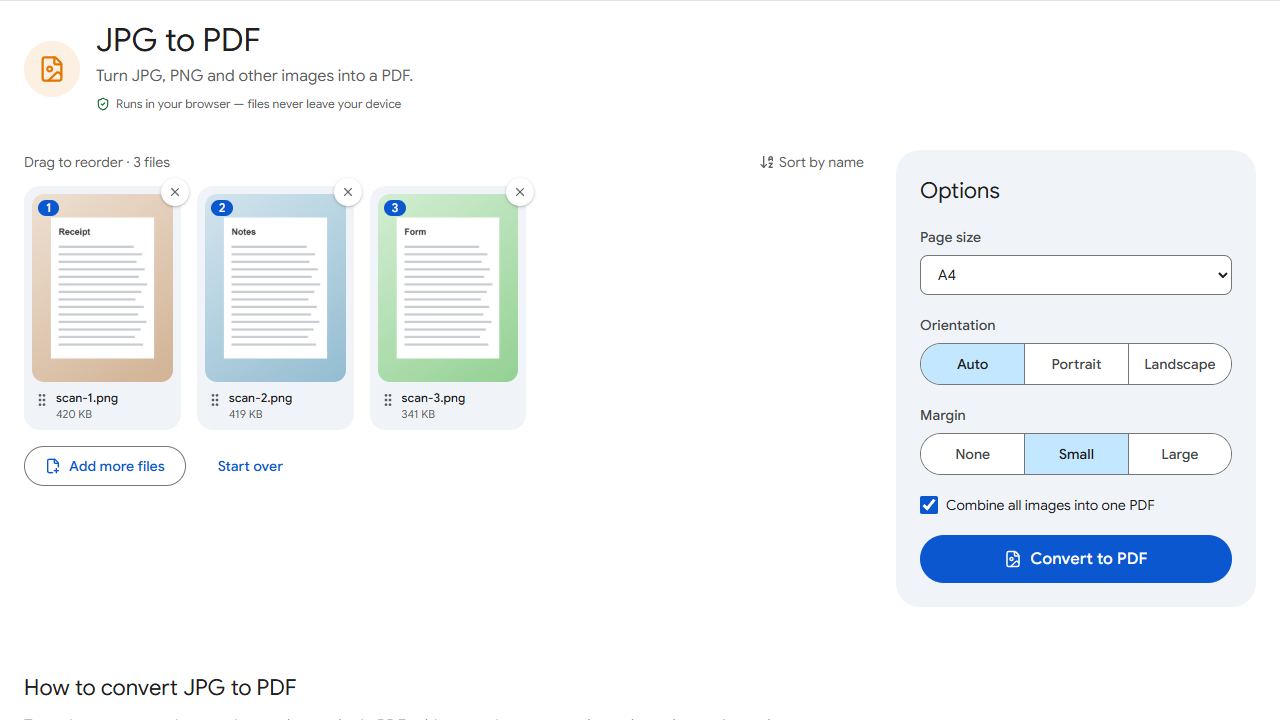
Already took photos? Add them from your gallery instead, or use JPG to PDF to combine them with control over page size and margins.
Five tips for a clean scan
- Light it evenly. Daylight near a window beats a ceiling lamp. Avoid your own shadow falling across the page.
- Hold the phone parallel to the page. Tilting makes the text trapezoid-shaped and harder to read.
- Use a dark background. A white page on a dark table makes the edges clear.
- Flatten the paper. Creases and curled edges cast shadows.
- Turn off the flash for glossy paper — it causes glare spots.
Make the scan searchable
A phone scan is a set of images. If you need to search or copy the text, run the finished PDF through OCR PDF.
Is it private?
Yes. The camera feed and your photos are processed in your browser on the phone itself; nothing is uploaded. That matters for IDs, receipts and medical paperwork.
Common problems and fixes
- The camera doesn't start.
- Your browser needs permission to use the camera. Tap the camera or lock icon next to the address bar and allow it. If you denied it earlier, reset the permission in your browser's site settings.
- Pages come out dark or grey.
- Scan near a window in daylight and turn on scan mode, which increases contrast. Avoid scanning under a single yellow ceiling lamp.
- Text looks blurry.
- Hold the phone steady, tap the screen to focus if your phone supports it, and move a little further back — phone cameras often can't focus very close.
- The PDF has the pages in the wrong order.
- Fix the order afterwards in Organize PDF, or capture pages in reading order next time.
Frequently asked questions
No. Scan to PDF works in your phone's web browser, on both Android and iPhone.
Usually yes, if the page is flat, sharp, evenly lit and fully in frame. Some organisations have their own requirements, such as colour scans or a minimum resolution, so check if unsure.
Yes. Capture each page in turn; they're combined into a single PDF in the order you took them.
Run the finished PDF through OCR PDF to add a searchable text layer.