How to Extract All the Text from a PDF
By Bishal Neupane · · 2 min read
Copying text from a PDF viewer page by page is slow and often breaks lines in the middle of sentences. Extracting everything into a text file in one step is much faster.
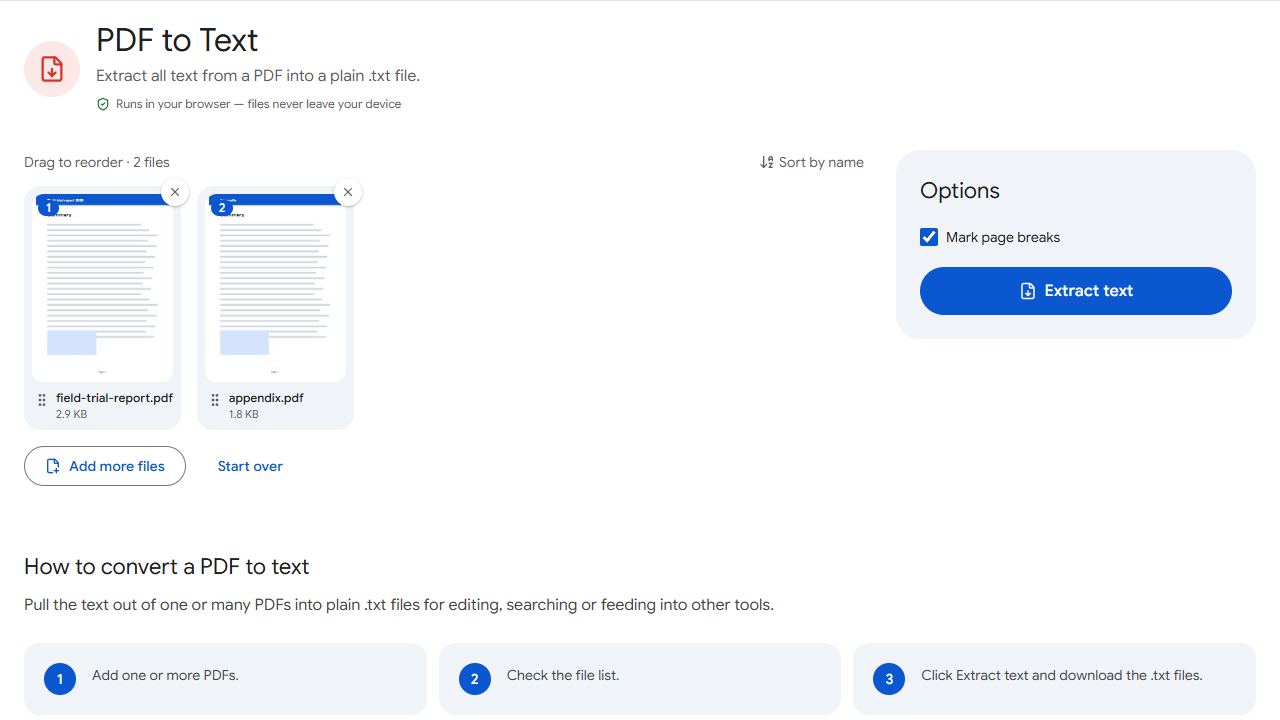
Step by step
- Open PDF to Text and add one or more PDFs.
- Click Extract text.
- Download the .txt file — or a ZIP with one .txt per PDF if you added several.
The text files open in any editor, word processor or spreadsheet tool.
Good uses
- Quoting and editing a document you only have as a PDF.
- Word counts for translations, assignments or invoices.
- Research and analysis: feeding text into Python, R or a spreadsheet for keyword counts or text mining.
- Searching many PDFs at once with your computer's file search.
Empty or garbled output?
If the text file is empty, the PDF is a scan: the pages are images with no text inside. Run OCR PDF first to add a text layer, then extract again.
Multi-column layouts and tables come out as plain lines of text. If you need headings and lists preserved — for notes or AI tools — use PDF to Markdown instead.
Common problems and fixes
- The text file is empty.
- The PDF contains images of text. Run OCR PDF first.
- Words run together or split oddly.
- Some PDFs store text in unusual pieces. Check the result and tidy spacing in your editor.
- Special characters look wrong.
- Open the .txt file with UTF-8 encoding; most modern editors do this automatically.
- Headers and page numbers are mixed into the text.
- Everything printed on the page is extracted, including running headers, footers and page numbers. Remove them in your editor with find and replace if they get in the way.
Frequently asked questions
Yes. Add them together; you get one .txt file per PDF.
Line breaks are kept; fonts, colours and layout aren't. Use PDF to Markdown to keep headings and lists.
No. Text extraction runs in your browser.
Extract those pages first with Extract Pages, then convert the smaller file to text.