How to Convert PDF Pages to JPG or PNG Images
By Bishal Neupane · · 2 min read
Need a PDF page as a picture — for a presentation, a WhatsApp message, a website or a social post? Converting it to an image takes a few seconds once you know which settings to pick.
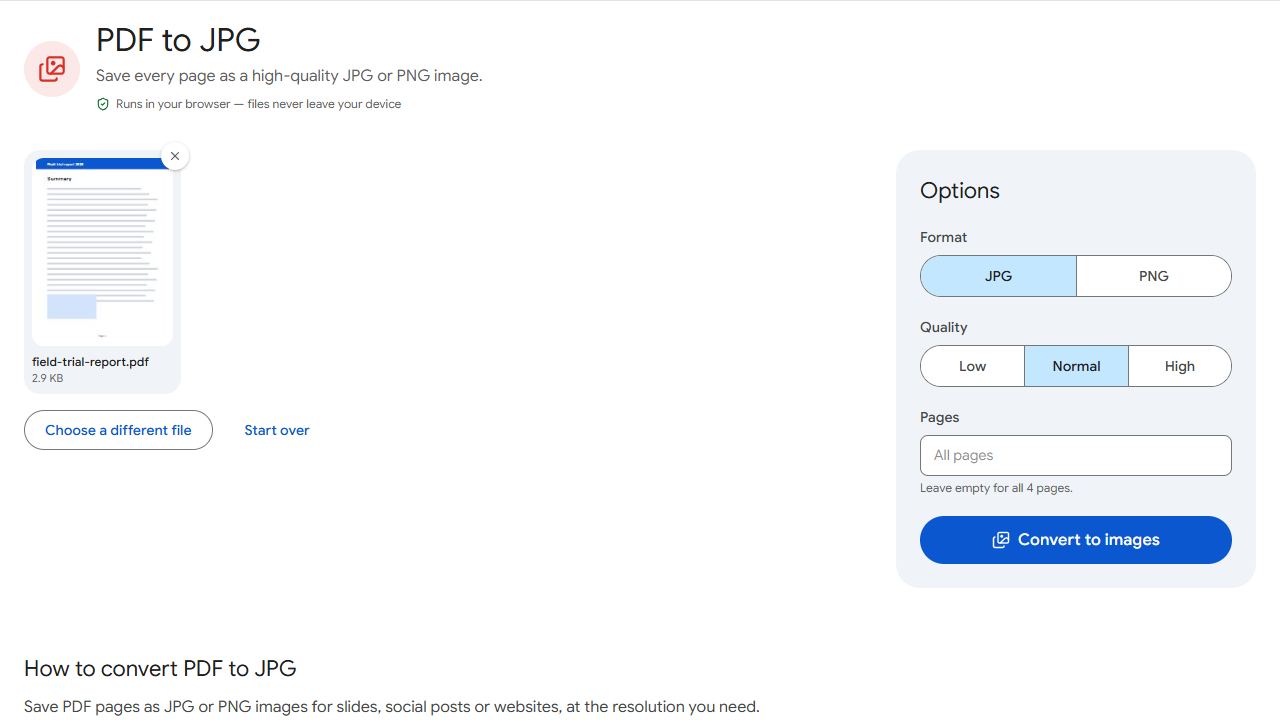
Step by step
- Open PDF to JPG and add your PDF.
- Choose the format (JPG or PNG), the resolution and, if you like, which pages to convert.
- Click Convert to images. One page downloads as a single image; several pages download together as a ZIP file.
JPG or PNG?
- JPG makes much smaller files and is ideal for photos, scans and pages with lots of images. It's the safest choice for sharing on social media and messaging apps.
- PNG keeps text, lines and diagrams perfectly sharp with no blurry edges, at the cost of bigger files. Choose it for charts, slides and anything with small text.
Choosing the resolution
Resolution is measured in DPI (dots per inch): how many pixels are used for each inch of the page.
- Low (72 DPI) — small previews and thumbnails.
- Normal (150 DPI) — screens, websites and presentations. A good default.
- High (300 DPI) — printing, or when people will zoom in to read small text.
Doubling the DPI makes an image roughly four times larger in file size, so only use High when you need it.
Only part of a page?
If you only need a chart or a signature block, crop the page first with Crop PDF, then convert. To convert a handful of pages from a long document, either type them into the pages field or pull them out first with Extract Pages.
Common problems and fixes
- The images look blurry.
- Choose a higher resolution — High (300 DPI) for anything with small text — and PNG if the page is mostly text or diagrams.
- I only got a ZIP file.
- When several pages are converted, the images are packed into one ZIP so you download them in one go. Open it to find one image per page.
- The images are too large to upload somewhere.
- Use JPG at Normal resolution. For web use, Normal (150 DPI) is usually plenty.
- Transparent areas turned white.
- PDF pages are rendered on a white background, which matches how they look when printed.
Frequently asked questions
Yes. Enter that page number in the pages field before converting.
300 DPI (High). For screens, 150 DPI (Normal) is enough.
Yes. Pages are rendered in your browser; the PDF isn't uploaded.
Yes, with JPG to PDF. Text in the images won't be selectable unless you run OCR on the result.