How to Combine Your CV and Cover Letter into One PDF
By Bishal Neupane · · 2 min read
Plenty of job portals and application forms allow a single attachment. Sending one tidy PDF — cover letter, CV, then certificates — is easier for the reader too.
Export each document as a PDF first
In Word use File → Save As → PDF; in Google Docs use File → Download → PDF. A PDF keeps your layout and fonts exactly as you designed them on any device.
Certificates on paper can be photographed or scanned, then turned into a PDF with JPG to PDF.
Merge them in the right order
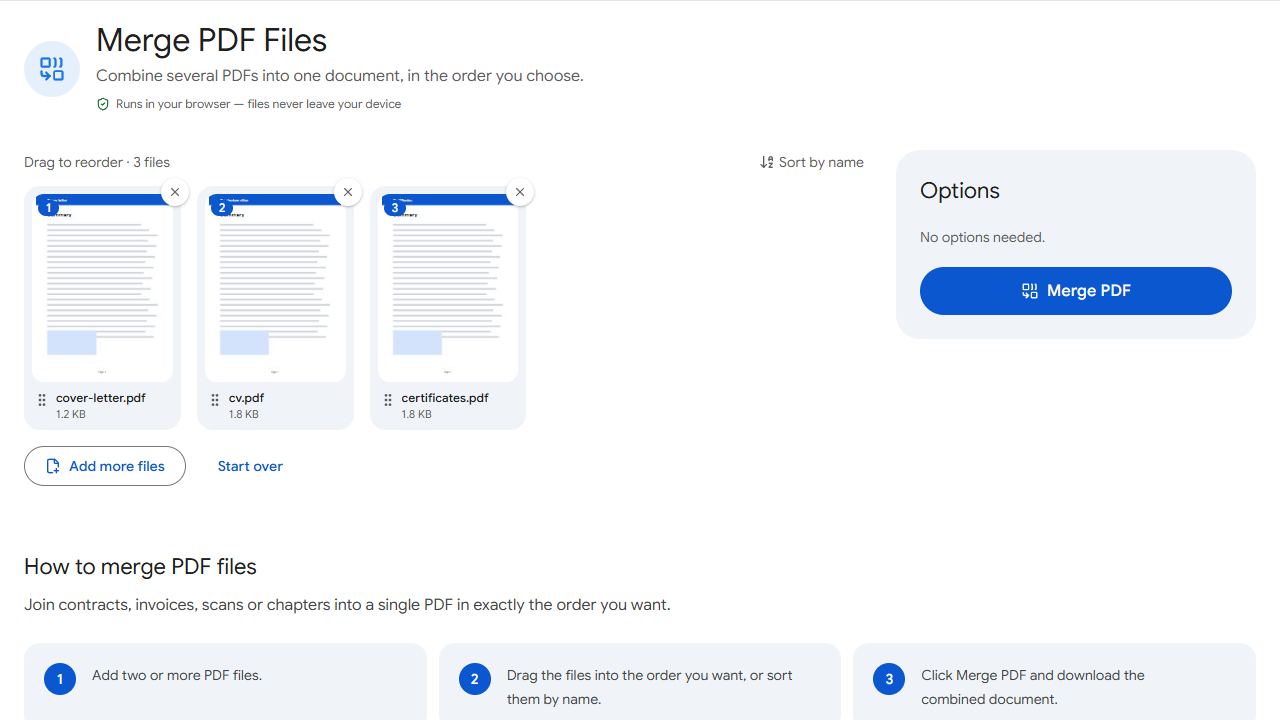
- Open Merge PDF and add the cover letter, CV and certificates.
- Drag them into order: cover letter first, CV second, then certificates and references.
- Click Merge PDF and download.
Finishing touches
- Name the file clearly, for example
Sita-Sharma-CV.pdf. Recruiters see the name before they open it. - Set the document title in Edit Metadata. Some browsers and applicant systems show the title instead of the file name, and
Microsoft Word - Document1looks careless. - Check the size. Portals often limit uploads to a few megabytes, and scanned certificates are the usual cause of big files. Leave out certificates nobody asked for, and shrink the rest with Compress PDF.
Keep your CV machine-readable
Many employers use applicant tracking systems that read the text in your PDF. A CV exported from Word or Docs contains real text; a scanned or photographed CV is just an image, so the system sees nothing.
If a scan is all you have, run it through OCR PDF so the text can be read — but it's better to recreate the CV as a document and export it.
Common problems and fixes
- The portal says my file is too large.
- Scanned certificates are usually the cause. Run the file through Compress PDF, and leave out certificates that weren't requested with Remove Pages.
- A certificate is sideways in the merged file.
- Fix it with Rotate PDF; the rotation is saved permanently.
- My CV's fonts look different after merging.
- Merging copies pages exactly, so the change happened when the CV was exported. Export again with Save As → PDF in Word or Download → PDF in Google Docs, not by printing to a PDF printer.
- The cover letter is on the wrong page.
- Reorder the pages in Organize PDF, or merge again with the cover letter first in the list.
Frequently asked questions
Yes. It introduces you and explains why you're applying, so it should be the first thing the reader sees.
Only if the portal allows a single file and asks for them. Otherwise, send certificates when they're requested.
PDF, unless the job advert asks for Word. A PDF looks the same on every device.
With PDFCraftly, yes: your documents are processed in your browser and never uploaded.