How to Rotate PDF Pages Permanently (and Why Viewers Forget)
By Bishal Neupane · · 2 min read
You rotate a sideways page in your PDF viewer, send the file — and the recipient sees it sideways again. Here's why that happens and how to fix the file itself.
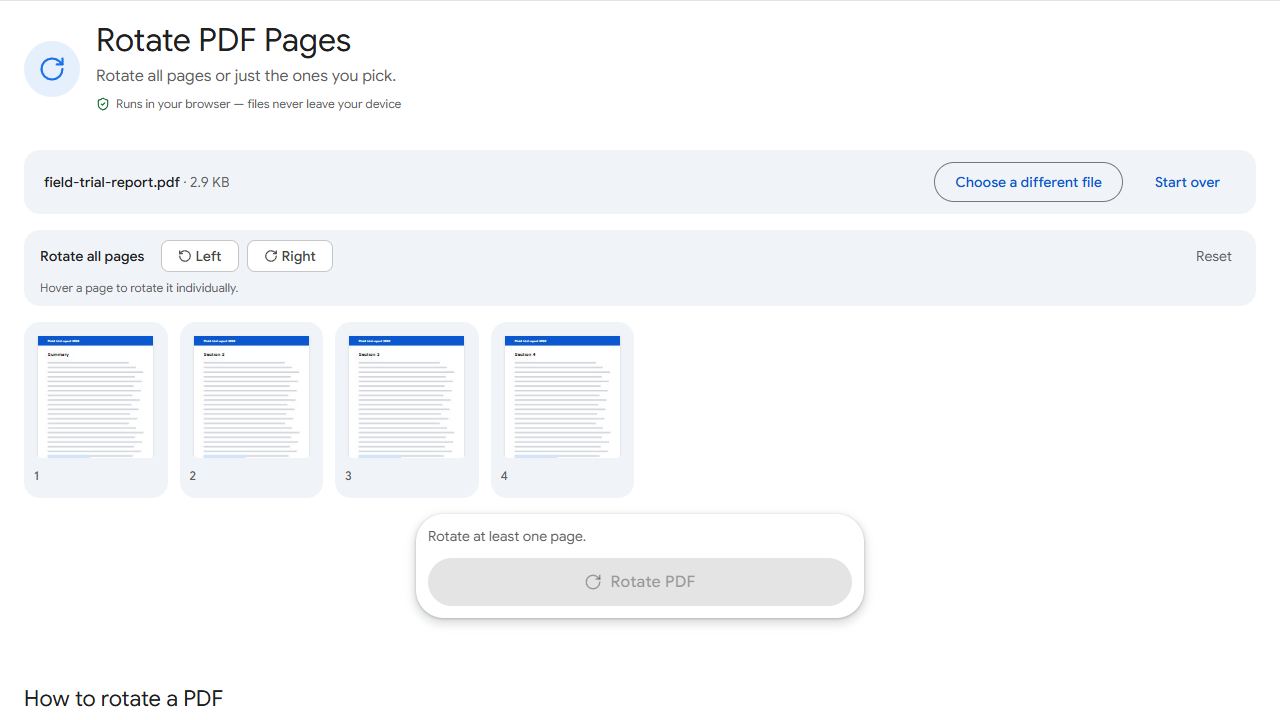
Why viewer rotation doesn't stick
The rotate button in most PDF viewers only changes how the page is displayed on your screen, for that session. Unless you save the file with a tool that writes the rotation into it, the PDF itself is unchanged, so everyone else still sees the original orientation.
Rotate the file itself
- Open Rotate PDF and add the file.
- To rotate every page, use Left or Right at the top. To fix only some pages, use the rotate buttons on those pages' thumbnails.
- Click Rotate PDF and download.
The rotation is saved in the new PDF, so it opens the right way in every viewer, on every device, and prints correctly.
Mixed problems in one document?
If some pages are sideways, some are in the wrong order and a few are blank, fix everything at once in Organize PDF: rotate, drag to reorder and delete pages in one view.
Mirrored, not rotated?
If the text reads backwards — common with some scanners and phone front cameras — the page isn't rotated but mirrored. Use Flip PDF to flip it horizontally or vertically.
Common problems and fixes
- Some pages are sideways and some aren't.
- Use the rotate buttons on each page's thumbnail instead of rotating all pages.
- The page rotated the wrong way.
- Click the opposite direction, or Reset, before saving.
- The rotated page prints sideways.
- Check your printer's orientation setting is "Auto" so it follows the PDF.
- Text appears backwards after rotating.
- The page was mirrored, not rotated. Use Flip PDF.
Frequently asked questions
No. Rotation changes the page's orientation setting; the content isn't re-rendered.
Yes — rotate twice in the same direction.
Yes. It's saved in the PDF, so every viewer shows the pages the right way up.
Yes. Rotate PDF works in mobile browsers.